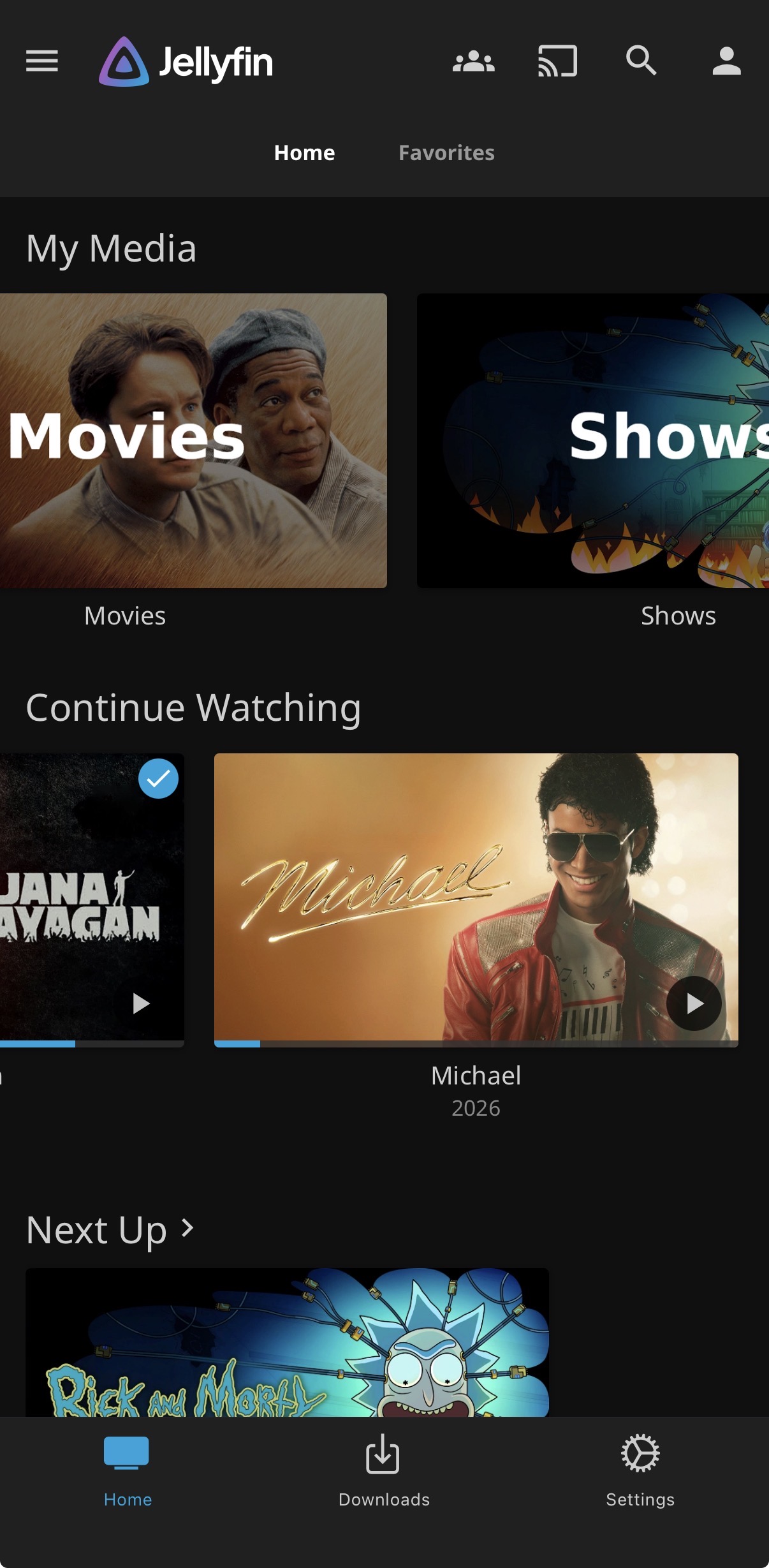
What Jellyfin Does
Jellyfin turns a folder of video files into a proper streaming experience: posters, descriptions, episode tracking, resume-from-where-you-left-off, and apps for TVs, phones, and browsers — all served from your own server instead of a subscription platform. It's completely free and open-source, with no account required beyond the one you create on your own server.
Setting It Up in Docker
services:
  jellyfin:
    image: jellyfin/jellyfin
    container_name: jellyfin
    ports:
      - "8096:8096"
    volumes:
      - './jellyfin-config:/config'
      - './jellyfin-cache:/cache'
      - '/mnt/external-drive/movies:/data/movies'
      - '/mnt/external-drive/tvshows:/data/tvshows'
    restart: unless-stopped
Start it with docker compose up -d, then open http://your-server-ip:8096 to run the first-time setup wizard — creating an admin account and pointing Jellyfin at the media folders you mounted above.
Organizing Your Media Folders
Jellyfin identifies movies and shows automatically, but only if files are named and organized in a way it can recognize. A reliable structure:
movies/
  Movie Name (2020)/
    Movie Name (2020).mkv

tvshows/
  Show Name/
    Season 01/
      Show Name S01E01.mkv
      Show Name S01E02.mkv
Getting this naming right the first time saves a lot of manual metadata fixing later. This is exactly the kind of organizing that the media automation stack (Radarr/Sonarr) handles automatically if you're pulling in new content regularly.
Watching Remotely
Jellyfin apps exist for most TVs, phones, and streaming boxes. When away from home, connect using your server's Tailscale address instead of its local IP — same login, same library, just reachable from anywhere with internet.
Hardware Transcoding (Optional)
When a device can't play a file's original format directly, Jellyfin "transcodes" it on the fly — converting the video in real time. On modest hardware without dedicated video acceleration, transcoding multiple streams at once can be slow. If your server's processor supports it, enabling hardware acceleration under Playback settings offloads this work and significantly improves performance — check your specific CPU's capabilities before assuming it's supported.
Common Issues
A movie shows up with the wrong poster or info. Usually a naming issue — Jellyfin matched the file to the wrong entry in its metadata database. Fix the filename to match the correct title and year, then refresh metadata for that item.
Playback stutters or buffers constantly. Often a transcoding bottleneck — either enable hardware acceleration if available, or check whether the file's format is one most of your devices can play natively without needing to be converted at all.