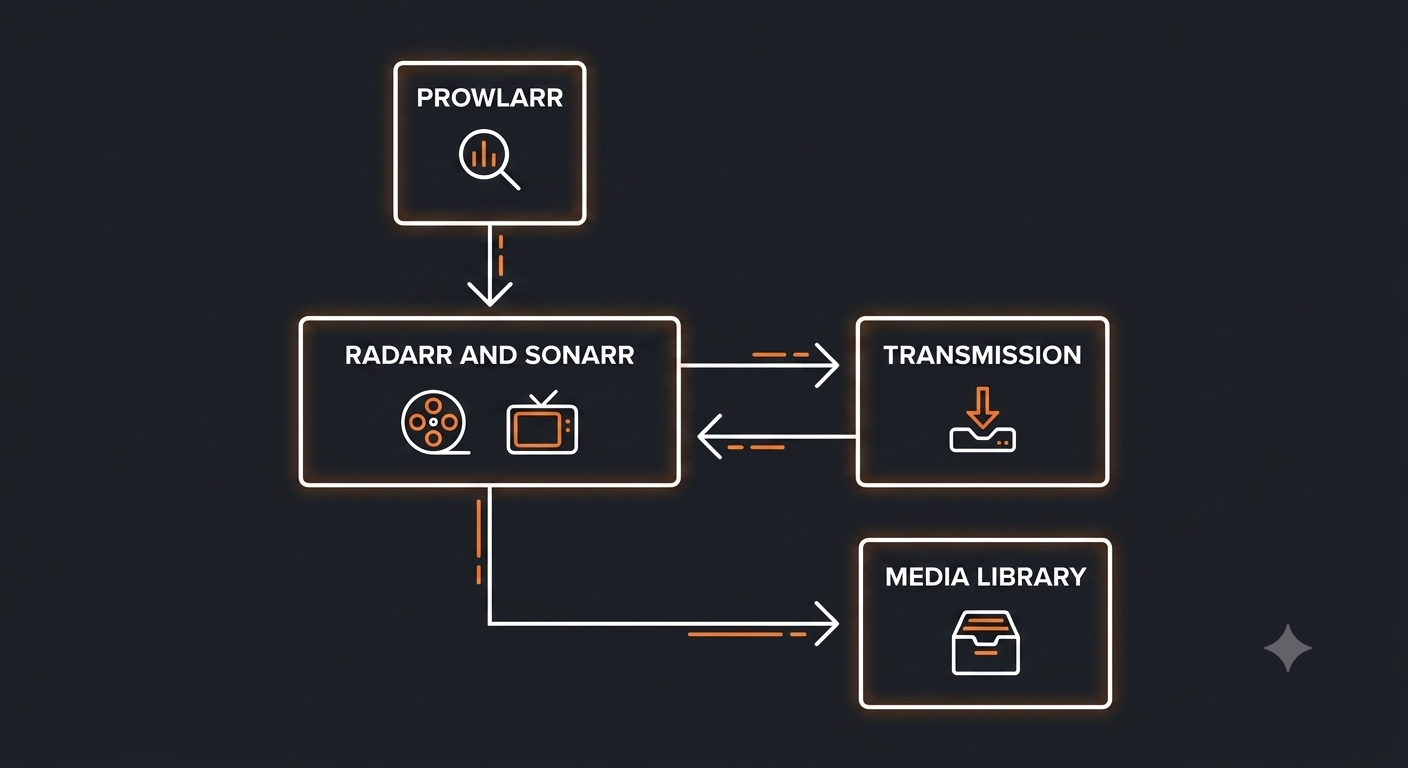
The Idea: Four Tools, One Pipeline
Each of these tools does one narrow job well, and they hand work off to each other automatically:
| Tool | Job |
|---|---|
| Prowlarr | Manages your indexers (search sources) in one place, so you don't configure them separately in every other tool |
| Radarr | Tracks movies you want, searches for them automatically, and organizes them once downloaded |
| Sonarr | Same idea as Radarr, but for TV shows — tracks entire series, season by season, episode by episode |
| Transmission | The actual download client that fetches the files Radarr/Sonarr find |
Once connected together, the workflow becomes: you add a movie or show to Radarr/Sonarr → it searches through Prowlarr's indexers → a match gets sent to Transmission to download → once complete, Radarr/Sonarr automatically renames and moves the file into your organized media folder → Jellyfin picks it up and it's ready to watch.
Running the Stack in Docker
services:
  prowlarr:
    image: lscr.io/linuxserver/prowlarr:latest
    container_name: prowlarr
    ports:
      - "9696:9696"
    volumes:
      - './prowlarr-config:/config'
    restart: unless-stopped

  radarr:
    image: lscr.io/linuxserver/radarr:latest
    container_name: radarr
    ports:
      - "7878:7878"
    volumes:
      - './radarr-config:/config'
      - '/mnt/external-drive/movies:/movies'
      - '/mnt/external-drive/downloads:/downloads'
    restart: unless-stopped

  sonarr:
    image: lscr.io/linuxserver/sonarr:latest
    container_name: sonarr
    ports:
      - "8989:8989"
    volumes:
      - './sonarr-config:/config'
      - '/mnt/external-drive/tvshows:/tv'
      - '/mnt/external-drive/downloads:/downloads'
    restart: unless-stopped

  transmission:
    image: lscr.io/linuxserver/transmission:latest
    container_name: transmission
    ports:
      - "9091:9091"
    volumes:
      - './transmission-config:/config'
      - '/mnt/external-drive/downloads:/downloads'
restart: unless-stopped/downloads folder. Every tool above points at the same downloads location on your drive. This matters — it's how Radarr and Sonarr are able to find files that Transmission just finished downloading, and move them into their proper organized folders afterward.
Connecting the Pieces
- Set up Prowlarr first. Add your indexers inside Prowlarr's web interface (
http://your-server-ip:9696) - Connect Prowlarr to Radarr and Sonarr. In Prowlarr, go to Settings → Apps, and add both Radarr and Sonarr with their respective addresses and API keys (found in each tool's own Settings → General page) — this pushes your indexers into both automatically, so you never configure them twice
- Connect Transmission as the download client. In both Radarr and Sonarr, go to Settings → Download Clients, and add Transmission using its address, port, and any credentials you set
- Point Radarr/Sonarr at your organized folders. Under Settings → Media Management, confirm the root folders match where you want finished movies/shows to end up — the same folders Jellyfin is watching
Adding Content
Once connected, using the stack day-to-day is simple: search for a movie in Radarr or a show in Sonarr, add it, and the rest happens automatically in the background. Sonarr in particular can be set to monitor an entire ongoing series, automatically grabbing new episodes as they become available.
Common Issues
Downloads complete in Transmission but never show up in Radarr/Sonarr. Almost always a path mismatch — the folder path Transmission reports as its download location has to exactly match what Radarr/Sonarr expect, which is why the shared volume mapping above matters so much. Double check the paths inside each container match.
Searches return nothing. Usually an indexer issue in Prowlarr — check that your configured indexers are actually online and working from Prowlarr's own test/search function before troubleshooting further downstream.