What Immich Does
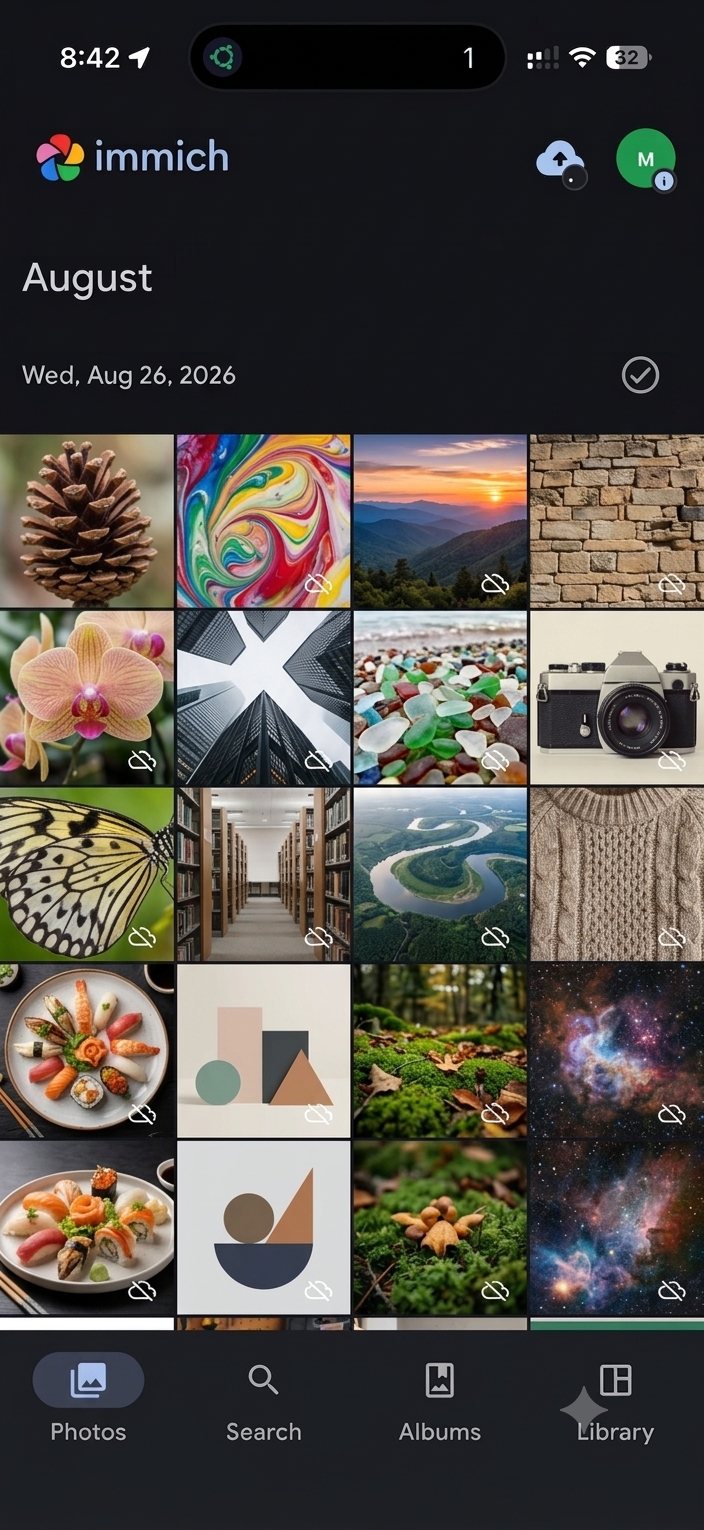
Immich mirrors most of what a service like Google Photos does — automatic backup from your phone, a searchable timeline, albums, face grouping, and a mobile app — but everything lives on your own server instead of a company's cloud. There's no storage limit beyond your own hardware, no subscription, and your photos never leave your network unless you choose to share them.
Running It with Docker
Immich is made up of several components (a server, a database, a machine-learning service for face/object recognition, and Redis for caching) that work together. Rather than writing this from scratch, Immich publishes an official docker-compose.yml and .env file that's kept up to date with the project — download those from Immich's official documentation and place them in their own folder on your server.
In the .env file, set where your photo library will actually be stored — this should point to your largest available drive, since photo libraries grow quickly:
UPLOAD_LOCATION=/mnt/external-drive/immich-libraryThen start it:
docker compose up -dThe web interface becomes available at http://your-server-ip:2283 once all the containers finish starting — the first launch can take a few minutes while the database initializes.
Connecting Your Phone
- Install the Immich app (iOS or Android)
- Enter your server's address — if you're only ever backing up from home Wi-Fi, the local IP works; for backup from anywhere, use your Tailscale address instead
- Log in with the account you created on first launching the web interface
- Enable background backup in the app's settings so new photos upload automatically, not just when you open the app
External Libraries: Importing Existing Photos
If you already have years of photos sitting in folders on an external drive, you don't need to re-upload them all through the app. Immich supports External Libraries — pointing it directly at an existing folder structure on your server, so it indexes and displays those photos without duplicating them into its own upload folder. This is set up under Administration → External Libraries in the web interface, and is especially useful for migrating an existing photo archive in one go.
Common Issues
Backup is slow on first run. Normal — the initial backup has to transfer your entire existing photo library, which can take hours depending on library size and network speed. Subsequent backups only send new photos and are much faster.
Face recognition / search feels sluggish. The machine-learning features are the most resource-intensive part of Immich. On lower-powered hardware, these can run slowly — this is a tradeoff of running Immich on modest hardware rather than a fault in the setup itself.