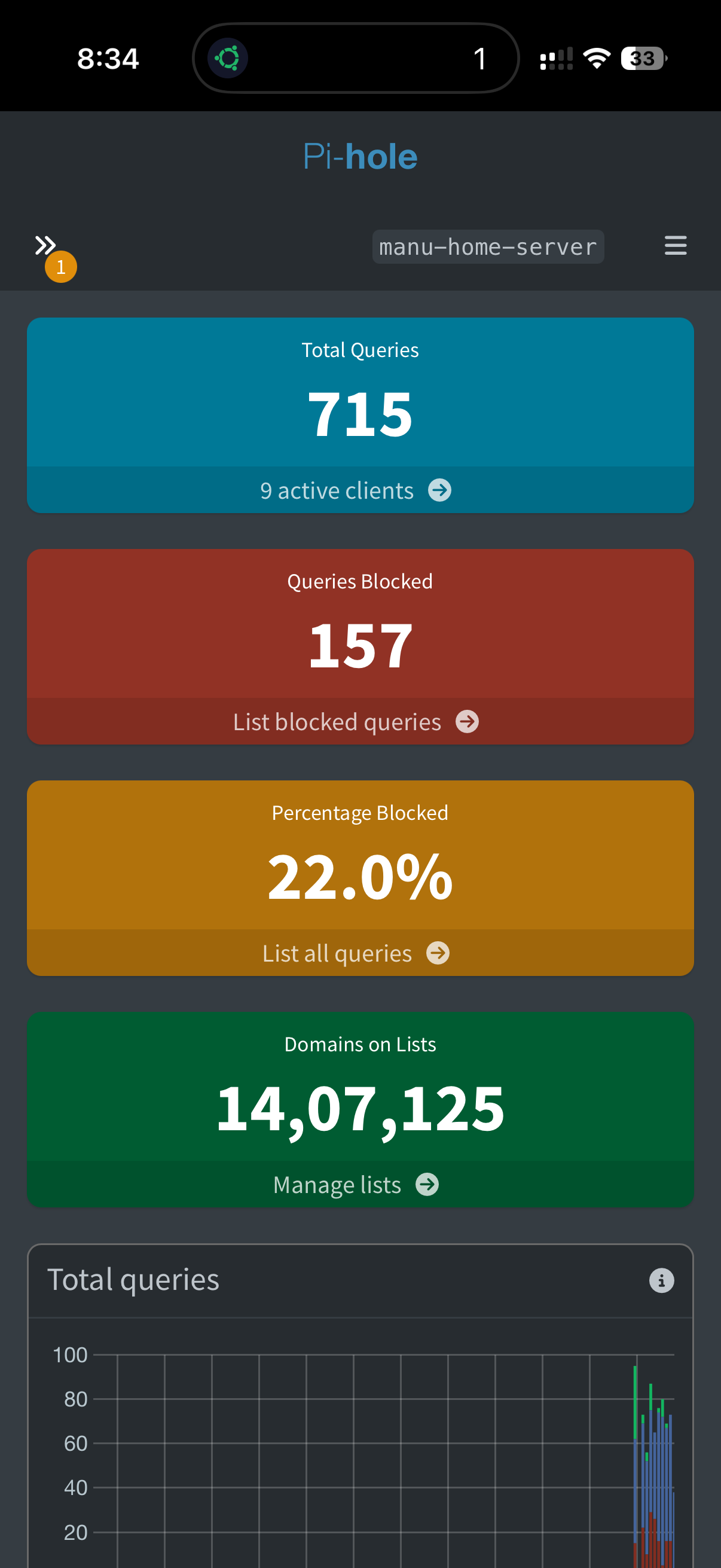
What Pi-hole Actually Does
Every time an app or website loads an ad, your device first has to look up the ad server's address using DNS — the internet's "phone book." Pi-hole works by acting as that phone book for your whole network: when a device asks for a known ad or tracker domain, Pi-hole simply refuses to answer, so the ad never loads. It's not an app you install on each phone or laptop — it's a change to how your entire network resolves addresses, so everything benefits at once.
Setting It Up in Docker
Add this to your docker-compose.yml alongside your other services:
services:
  pihole:
    container_name: pihole
    image: pihole/pihole:latest
    ports:
      - "53:53/tcp"
      - "53:53/udp"
      - "8080:80/tcp"
    environment:
      TZ: 'Asia/Kolkata'
    volumes:
      - './etc-pihole:/etc/pihole'
      - './etc-dnsmasq.d:/etc/dnsmasq.d'
    restart: unless-stopped
Start it with docker compose up -d, then open http://your-server-ip:8080/admin in a browser to reach the dashboard. The default admin password is generated on first run — check the container logs with docker logs pihole to find it.
Pointing Your Network at It
Pi-hole only blocks things if your devices actually ask it for DNS. The cleanest way to do this network-wide is through your router:
- Log into your router's admin settings
- Find the DNS or DHCP settings
- Set the primary DNS server to your server's static local IP (e.g.
192.168.68.118) - Save and reboot the router if it doesn't apply automatically
Every device that connects to your Wi-Fi afterward will automatically pick up Pi-hole as its DNS resolver — no per-device setup required.
Groups: Not Every Device Should Be Blocked the Same Way
Some smart home devices misbehave under strict ad-blocking DNS — a blocked domain that looks like an ad tracker to Pi-hole might actually be a check-in server the device depends on to function. Pi-hole's Group Management feature solves this by letting different devices follow different rules:
- Create a group (e.g. "IoT") with no blocklists applied, for smart plugs, bulbs, and similar devices that are prone to breaking
- Create another group (e.g. "Unrestricted") for a specific device — like your own phone — that you want fully exempted from blocking for testing or troubleshooting
- Assign each client (identified by IP or MAC address) to the appropriate group under Settings → Clients
This targeted approach avoids the common trap of ad-blocking DNS silently breaking a handful of devices, with no obvious explanation why.
Regex Blocking
Standard blocklists work by exact domain name, but some ad networks use huge numbers of rotating subdomains. Instead of blocking each one individually, Pi-hole supports regex (pattern-based) blocking under Domains → Regex Filter — a single well-crafted pattern can block an entire family of ad domains at once.
Whitelisting When Something Breaks
Occasionally a legitimate service will stop working because part of its traffic looks like a tracker to Pi-hole's blocklists. When this happens:
- Check the Pi-hole dashboard's Query Log to see which domain was blocked around the time the issue started
- Go to Domains → Whitelist and add that specific domain
- Retest the service
Common Issues
Devices aren't using Pi-hole at all. Double-check your router actually applied the new DNS setting — some routers cache the old setting until a full reboot, and some devices ignore router-assigned DNS if they have a manually configured DNS setting of their own.
Pi-hole's own updates stop working. Pi-hole needs internet access to update its blocklists — make sure the container itself isn't being blocked by any other network-level filtering you might have running.